Ways to Open a Password-Protected PDF Without the Password
Locked out of a critical document? Learn how to differentiate between Open and Permissions passwords, bypass restrictions safely, and recover access to your own files.
If you forgot a PDF's Open Password, you cannot bypass it without legitimate password recovery software (brute force). That said, if the PDF only has a Permissions Password (which prevents printing or editing, but lets you view it), you can bypass it entirely for free. Simply open the PDF in Google Chrome, select "Print," and choose "Save as PDF" to create an unlocked copy.

In This Guide
Permissions Password vs Open Password — Explained
Before attempting to unlock a PDF, you must identify which type of lock is applied. PDF standards utilize two distinct password mechanisms. Attempting the wrong bypass approach will waste your time.
This password encrypts the entire contents of the file. Without it, you cannot view the text, images, or metadata. If a document prompts you for a password immediately upon opening, it uses an Open Password.
Can it be bypassed? No. Modern PDFs use 128-bit or 256-bit AES encryption. You cannot "strip" this password. You must either know it, or use password recovery software to guess it via brute-force or dictionary attacks.
This password restricts what a user can do after opening the file. You can read the document freely, but you may find the "Print," "Copy," or "Edit" buttons are grayed out. The PDF format relies on the PDF reader application (like Adobe Acrobat) to honor these restrictions.
Can it be bypassed? Yes, easily. since you already have read access to the decrypted content, you can usually print the file to a new, unrestricted PDF using native OS tools.

Interactive Recovery Path
Answer a few questions to find the exact approach you need to regain access to your document.
Good news: You can bypass this without any external software.
- Drag and drop the PDF into Google Chrome.
- Press Ctrl+P (Windows) or Cmd+P (Mac) to open the print dialog.
- Set the destination to "Save as PDF".
- Click Save. The new file will have no restrictions.
- Open the PDF in Mac Preview or a free tool like PDF24.
- Enter the password to unlock it.
- Go to File > Export (or Print > Save as PDF).
- Save the file without checking the "Encrypt" box.
Reality Check: If the file is yours, you will need to use a Brute-Force Password Recovery tool. If it is a bank statement, the password is usually a combination of your PAN card, Customer ID, or Date of Birth. See our Bank Statement Guide below.
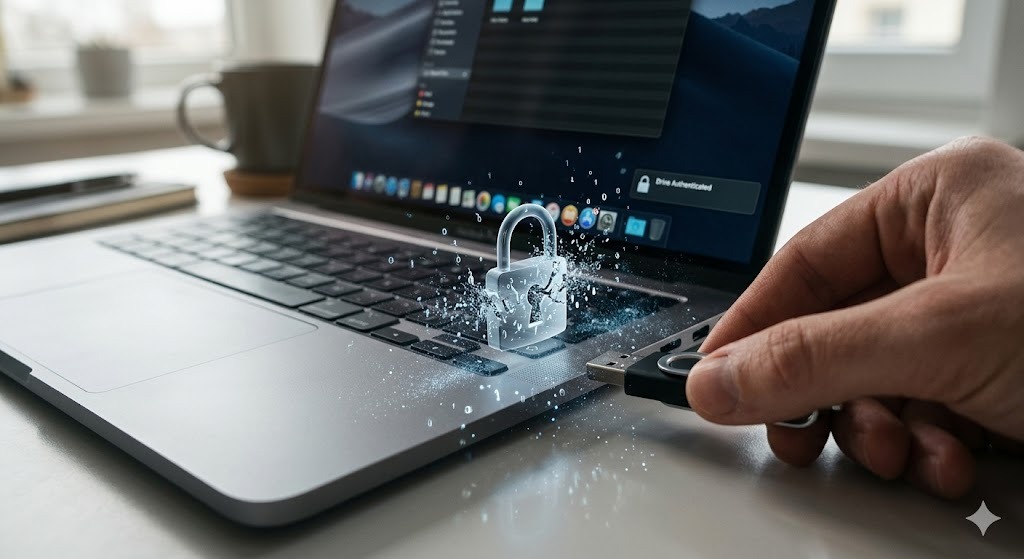
Method 1: Open a Password Protected PDF in Google Chrome
If your goal is to remove password from pdf without password (specifically the permissions password), Google Chrome is the most reliable native tool.
Ways to Print to PDF in Chrome
- Open your Google Chrome browser.
- Drag and drop your restricted PDF into an empty tab.
- Click the Print icon in the top right corner, or press
Ctrl + P. - In the "Destination" dropdown menu, select Save as PDF.
- Click Save. You now have an exact copy of the document that is completely unlocked.
Limitations: This approach strips bookmarks, hyperlinks, and form fields, flattening them into static text. It also will not work if the document has a high-security Open Password.
Method 2: Mac Preview (Remove Password from PDF)
If you are on macOS and you know the Open Password, but want to remove it so you don't have to type it every time, the native Preview app makes this trivial.
Ways to Remove the Password in Preview
- Double-click the PDF to open it in Preview.
- Enter the current password to unlock the document.
- Navigate to File > Export as PDF...
- Ensure the "Encrypt" checkbox at the bottom of the dialog is unchecked.
- Save the file.
Reasons Document Password Protection Is Not the Same as Full Encryption
PDF passwords are notoriously fragile. Permissions passwords can be bypassed in seconds using Chrome, and older PDF open passwords can be brute-forced easily. If you are serious about securing office files, you need true container encryption, not just document-level locks.
> FOLDERS LOCKED: 14
> FILES ENCRYPTED: 2,408
Instead of putting weak passwords on individual PDFs, encrypt the entire folder they live in.
Stop Relying on PDF Passwords
When you transition from trying to "password protect office files" individually to using dedicated security software like Folder Lock, your workflow changes dramatically.
-
Bulletproof On-The-Fly Encryption
Unlike PDF permissions which are merely 'requests' that software can ignore, Folder Lock uses dynamic 256-bit AES encryption. Your documents are decrypted in your computer's memory only when actively viewed, leaving no temporary footprint on your hard drive for forensic tools to recover.

-
Seamless Cloud Integration
Standard PDFs become vulnerable the moment you upload them to the cloud. Dedicated security software lets you create encrypted vaults directly inside your Google Drive, Dropbox, or OneDrive folders. The files sync automatically across your devices, but remain mathematically unreadable to the cloud providers themselves.

-
Portability Without Software
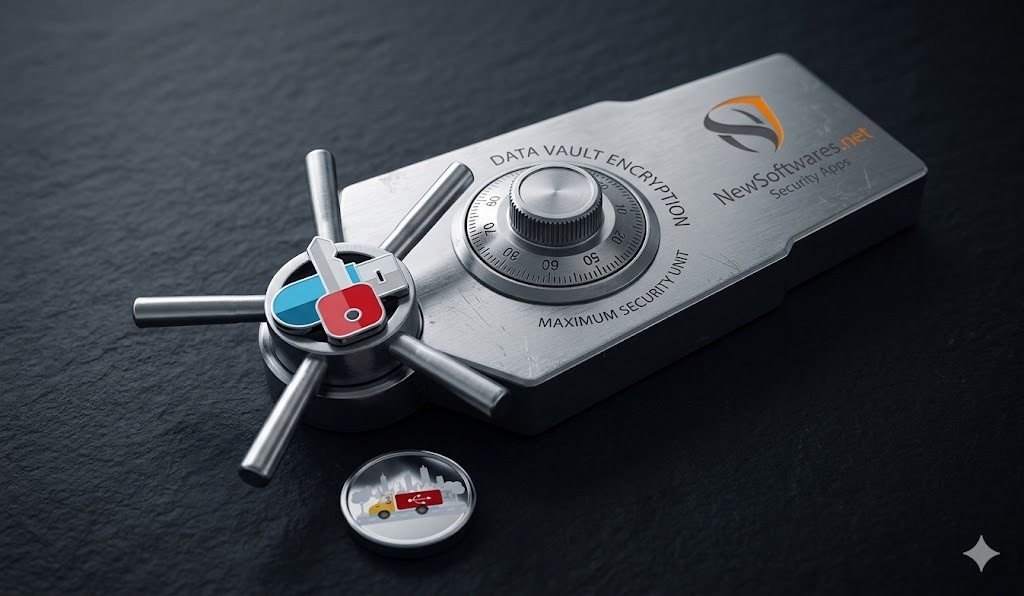
Need to share secured files physically? Folder Lock lets you convert Lockers into executable files. You can place them on a USB drive and unlock them on any Windows PC without needing Folder Lock installed on the guest machine.

-
Data Shredding & History Cleaning
Protecting a file is only half the battle. If the original, unencrypted PDF still exists in your recycle bin or temporary folders, your data is exposed. Comprehensive tools include file shredding to permanently destroy the original documents and wipe your operating system's recent activity logs.

Ways to Share Password-Protected Documents Safely
The greatest weakness of a password-secured PDF is the sharing process. If you email an encrypted PDF to a colleague, you must also send them the password. If you send that password via email, text, or chat, you have compromised the document's security before it even arrives.
Modern document security circumvents this fatal flaw entirely. By utilizing software equipped with asymmetric cryptography (such as RSA encryption), you can share access to a secure vault without ever revealing your master password.
The Smart Sharing Workflow:
- Place your PDFs and office files into a secure cloud locker (e.g., your encrypted Dropbox directory).
- Through your security software's sharing interface, authorize the recipient's email address.
- The recipient, using their own installation of the software, logs in with their own credentials to access the shared files.
- The Result: The files remain encrypted in transit and at rest, and the master password is never transmitted across the internet.


| Adobe Acrobat Open Password | Hard (Requires Brute Force) | Yes | Emailing single sensitive documents | Moderate |
| Online PDF Lockers | Varies | No (Often strips metadata) | Quick web-based locking | Privacy Risk |
| Folder Lock (AES-256) | Mathematically Impossible | Yes | Securing financial data and archives | Highly Secure |

Open Password Protected PDF on iPhone and Android
Many users search for "can't open password-secured pdf on iphone". Mobile operating systems handle PDFs differently than desktop environments.
Ways to Open Password Protected PDF Android & iOS
If you receive an encrypted PDF via Gmail or WhatsApp on mobile, the native file viewer might fail to prompt you for a password, resulting in a blank screen or an error. To fix this:
- Do not use the default "Quick Look" or email attachment viewer.
- Save the PDF to your device's local storage (Files app on iOS, My Files on Android).
- Download the official Adobe Acrobat Reader app from the App Store or Google Play.
- Open the file from within the Acrobat app. It will correctly prompt you for the password.

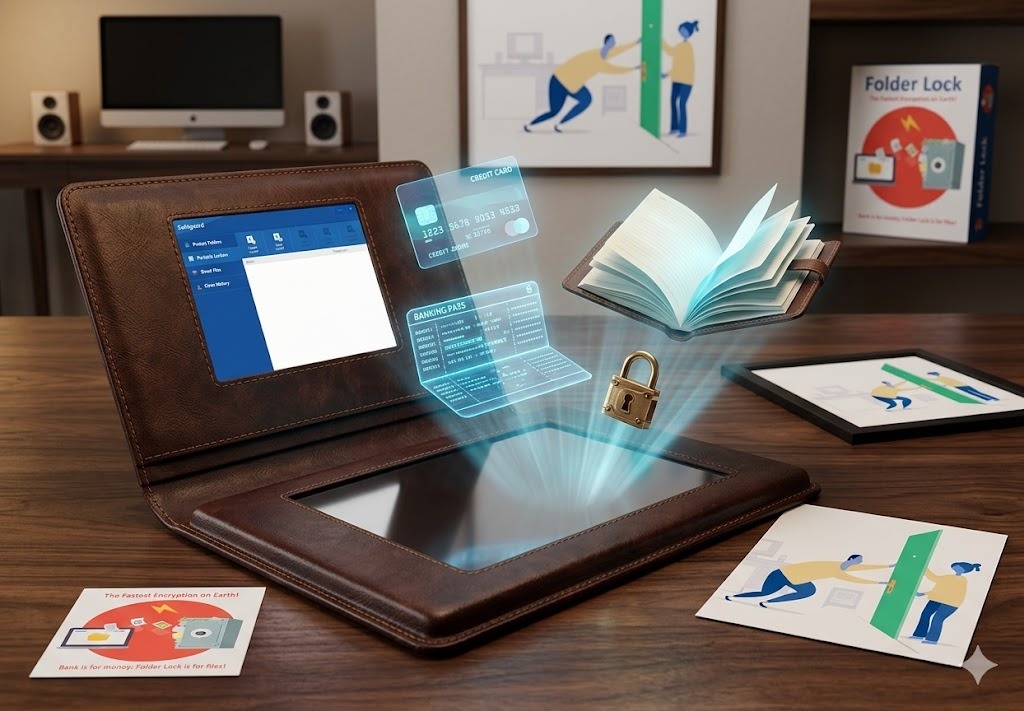
Cross-Platform Document Security (Windows, Mac, Mobile)
Relying on various PDF apps for various devices quickly becomes chaotic. If you frequently handle sensitive files across an iPhone, a Mac, and a Windows desktop, a unified security ecosystem is highly recommended.
Dedicated mobile security apps (like the iOS and Android versions of Folder Lock) offer functions that straightforward PDF readers cannot match. Beyond just viewing encrypted documents, these apps provide secure digital wallets for credit cards, encrypted note-taking for private ideas, and even secure browsers that leave no tracking cookies—all syncing seamlessly with your desktop vaults via your preferred cloud provider.
Ways to Open Password Protected PDF of SBI / HDFC Bank Statements
Financial institutions in India and elsewhere automatically encrypt statements before emailing them. If you cannot open your sbi bank statement open password pdf, do not use a password remover—these require the exact password format set by the bank.
- SBI Bank Statement: Usually your registered mobile number, or the last 5 digits of your mobile number followed by your Date of Birth (DDMMYY).
- HDFC Bank Statement: Your Customer ID.
- Pan Card PDF: Your full Date of Birth in DDMMYYYY format (e.g., 01051990 for May 1, 1990).
"I used to spend hours trying to batch password protect PDF files in Acrobat. Now I just drop my entire client folder into Folder Lock, and the whole directory is AES-256 encrypted in seconds. I never worry about easily bypassed PDF permissions anymore."
Common Questions and Answers
It is perfectly legal if you are the owner of the document and have forgotten your password, or if you have been granted authorized access but the permissions are causing technical problems. It is strictly illegal to bypass encryption on documents you do not own or do not have authorization to view.
If it is an Open Password, you must ask them for the password. If it is a Permissions Password and they have given you the right to read it, you can bypass the printing/copying restrictions using the Chrome "Print to PDF" approach outlined above.
Yes. If a PDF uses an older 40-bit RC4 encryption standard, it can be brute-forced in minutes. Modern AES-256 PDFs are virtually impossible to crack unless the password itself is weak (like "12345" or a dictionary word). This is why using dedicated security software like Folder Lock is recommended for high-stakes data.
Google Workspace (Docs, Sheets, Drive) cannot import or parse encrypted Office files or PDFs. You must remove the password locally on your computer first (using Mac Preview, Acrobat, or Excel/Word) before uploading the file to Google Drive.
Folder Lock requires the Master Password for uninstallation to prevent unauthorized users from deleting the security software to access files. If you forgot your password, you must use the Serial Number you received upon purchase to reset the Master Password via the official NewSoftwares support portal.
If you upload a standard password-secured PDF to Google Drive or Dropbox, it remains protected, but you must still find a safe way to transmit the password to the recipient. If you use dedicated security software to create a cloud locker, you can authorize users to access the shared directory using their own credentials, entirely eliminating the need to send passwords over insecure channels.
It relies on how they were encrypted. If you rely on native cloud security, a hacked account exposes everything. If you use client-side encryption (like putting your PDFs into an AES-256 encrypted locker before syncing them to Dropbox or OneDrive), the hacker will only see scrambled data, as the decryption key remains solely on your local device.
Key Takeaways
PDF passwords serve a purpose for casual emailing, but they are easily bypassed and frustrating to manage at scale. For genuine document security, encrypt the folder where the documents live.