How to Open a Password-Protected PDF Safely
Learn how to identify the type of PDF protection, open a file with the correct password, and recover legitimate access when the password is unavailable.
To open an encrypted PDF, enter the document-open password supplied by its owner or sender. If you know the password and are authorized to change the file, Adobe Acrobat can remove its security settings. If you do not know the password, ask the sender, check the delivery instructions, or obtain a fresh accessible copy. Adobe's official guidance says to contact the PDF author when the required password is unavailable.
In This Guide
Permissions Password vs Open Password — Explained
Before trying to regain access, identify which type of protection is applied. PDFs can use a document-open password, a permissions password, or both, and each requires the appropriate authorized credential.
This password encrypts the entire contents of the file. Without it, you cannot view the text, images, or metadata. If a document prompts you for a password immediately upon opening, it uses an Open Password.
What should you do if it is unavailable? Ask the author or sender for the password, check the secure delivery message, or request a replacement copy. Do not upload a confidential PDF to an unknown unlocking service.
This password restricts what a user can do after opening the file. You can read the document freely, but you may find the "Print," "Copy," or "Edit" buttons are grayed out. The PDF format relies on the PDF reader application (like Adobe Acrobat) to honor these restrictions.
Can you remove it? Only the document owner or an authorized user should change these restrictions. Adobe Acrobat requires the permissions password when prompted. If you do not have it, contact the author rather than attempting to work around the restriction.

Interactive Recovery Path
Answer a few questions to find the exact approach you need to regain access to your document.
Next step: Confirm that the document owner permits printing or editing, then request the permissions password or an unrestricted copy.
- Open the PDF's document properties and review the listed restrictions.
- Ask the author for the permissions password or a copy with the required actions enabled.
- In Adobe Acrobat, an authorized owner can use All tools > Protect a PDF > Set security properties.
- Enter the permissions password when prompted, remove the applicable restriction, and save the PDF.
- Open the PDF in Mac Preview or a free tool like PDF24.
- Enter the password to unlock it.
- Go to File > Export (or Print > Save as PDF).
- Save the file without checking the "Encrypt" box.
Next step: Contact the author or issuing organization. For bank statements and other automated documents, use only the password format stated in the institution's own message or support documentation. Request a replacement if those instructions are unavailable.

Method 1: Remove PDF Security in Adobe Acrobat
If you know the required password and are authorized to change the document, follow Adobe's official password-removal procedure.
Remove the Password or Permissions
- Open the PDF in Adobe Acrobat and enter the document-open password if requested.
- Select All tools > Protect a PDF.
- Select Set security properties, open the Security tab, and choose Change Settings.
- Clear the document-open or editing/printing restriction you are authorized to remove.
- Enter the permissions password if prompted, confirm the change, and save the PDF.
Limitation: If you do not know the required password, Adobe directs you to contact the PDF author.
Method 2: Mac Preview (Remove Password from PDF)
If you are on macOS and you know the Open Password, but want to remove it so you don't have to type it every time, the native Preview app makes this trivial.
Ways to Remove the Password in Preview
- Double-click the PDF to open it in Preview.
- Enter the current password to unlock the document.
- Navigate to File > Export as PDF...
- Ensure the "Encrypt" checkbox at the bottom of the dialog is unchecked.
- Save the file.
Reasons Document Password Protection Is Not the Same as Full Encryption
PDF document-open passwords encrypt access to a single document, while permissions passwords control actions such as printing, copying, and editing. Folder-level encryption serves a different purpose: protecting a collection of files at rest. Choose the control that matches what you need to protect, and use long, unique passwords stored in a password manager.
> FOLDERS LOCKED: 14
> FILES ENCRYPTED: 2,408
Instead of putting weak passwords on individual PDFs, encrypt the entire folder they live in.

Stop Relying on PDF Passwords
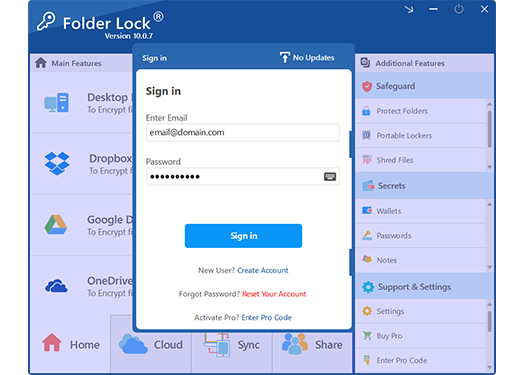
When you transition from trying to "password protect office files" individually to using dedicated security software like Folder Lock, your workflow changes dramatically.
-
Bulletproof On-The-Fly Encryption
Unlike PDF permissions which are merely 'requests' that software can ignore, Folder Lock uses dynamic 256-bit AES encryption. Your documents are decrypted in your computer's memory only when actively viewed, leaving no temporary footprint on your hard drive for forensic tools to recover.

-
Seamless Cloud Integration
Standard PDFs become vulnerable the moment you upload them to the cloud. Dedicated security software lets you create encrypted vaults directly inside your Google Drive, Dropbox, or OneDrive folders. The files sync automatically across your devices, but remain mathematically unreadable to the cloud providers themselves.

-
Portability Without Software
Need to share secured files physically? Folder Lock lets you convert Lockers into executable files. You can place them on a USB drive and unlock them on any Windows PC without needing Folder Lock installed on the guest machine.
-
Data Shredding & History Cleaning
Protecting a file is only half the battle. If the original, unencrypted PDF still exists in your recycle bin or temporary folders, your data is exposed. Comprehensive tools include file shredding to permanently destroy the original documents and wipe your operating system's recent activity logs.

Ways to Share Password-Protected Documents Safely
The greatest weakness of a password-secured PDF is the sharing process. If you email an encrypted PDF to a colleague, you must also send them the password. If you send that password via email, text, or chat, you have compromised the document's security before it even arrives.
Modern document security circumvents this fatal flaw entirely. By utilizing software equipped with asymmetric cryptography (such as RSA encryption), you can share access to a secure vault without ever revealing your master password.
The Smart Sharing Workflow:
- Place your PDFs and office files into a secure cloud locker (e.g., your encrypted Dropbox directory).
- Through your security software's sharing interface, authorize the recipient's email address.
- The recipient, using their own installation of the software, logs in with their own credentials to access the shared files.
- The Result: The files remain encrypted in transit and at rest, and the master password is never transmitted across the internet.


| Adobe Acrobat Open Password | Requires the password to open | Yes | Sharing a single sensitive PDF | Document-level |
| Online PDF Services | Varies by provider | Usually no | Non-confidential files after provider review | Review Privacy |
| Folder Lock (AES-256) | Requires the locker password | Yes | Protecting folders and archives at rest | Folder-level |
Open Password Protected PDF on iPhone and Android
Many users search for "can't open password-secured pdf on iphone". Mobile operating systems handle PDFs differently than desktop environments.
Ways to Open Password Protected PDF Android & iOS
If you receive an encrypted PDF via Gmail or WhatsApp on mobile, the native file viewer might fail to prompt you for a password, resulting in a blank screen or an error. To fix this:
- Do not use the default "Quick Look" or email attachment viewer.
- Save the PDF to your device's local storage (Files app on iOS, My Files on Android).
- Download the official Adobe Acrobat Reader app from the App Store or Google Play.
- Open the file from within the Acrobat app. It will correctly prompt you for the password.
Cross-Platform Document Security (Windows, Mac, Mobile)
Relying on various PDF apps for various devices quickly becomes chaotic. If you frequently handle sensitive files across an iPhone, a Mac, and a Windows desktop, a unified security ecosystem is highly recommended.
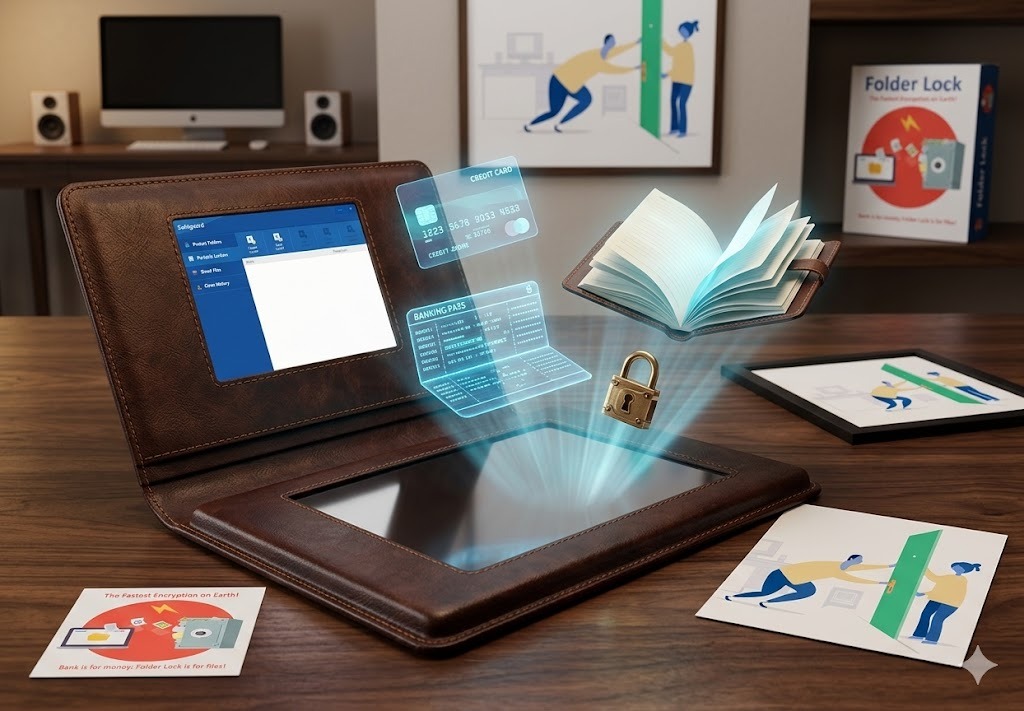
Dedicated mobile security apps (like the iOS and Android versions of Folder Lock) offer functions that straightforward PDF readers cannot match. Beyond just viewing encrypted documents, these apps provide secure digital wallets for credit cards, encrypted note-taking for private ideas, and even secure browsers that leave no tracking cookies—all syncing seamlessly with your desktop vaults via your preferred cloud provider.
How to Open a Password-Protected Bank Statement
Financial institutions commonly send statement PDFs with a password format described in the accompanying email, secure inbox, or official help page. Follow the instructions that came with your own statement; formats vary and can change.
- Read the delivery email or secure-message instructions carefully.
- Use only the format stated by the issuing institution; do not rely on password patterns copied from unrelated websites.
- If the instructions are missing or fail, contact the institution through its official website, app, or phone number and request assistance or a replacement statement.
"I used to protect client PDFs one at a time. Keeping the project files together in an encrypted folder made the workflow easier to manage while preserving the original PDFs."
Common Questions and Answers
Ownership and authorization matter, and applicable law varies by jurisdiction. Use the password supplied by the owner, follow your organization's policy, or ask the author to provide an accessible copy. This guide does not provide methods for defeating unknown passwords.
If it has a document-open password, ask the sender for the password through a secure channel. If printing or copying is restricted, ask the owner for the permissions password or a copy that allows the action you need.
Password protection depends on the PDF's security settings and the strength and secrecy of its password. Avoid short, reused, or predictable passwords, and keep sensitive documents and their passwords in approved secure systems.
Google Workspace (Docs, Sheets, Drive) cannot import or parse encrypted Office files or PDFs. You must remove the password locally on your computer first (using Mac Preview, Acrobat, or Excel/Word) before uploading the file to Google Drive.
Folder Lock requires the Master Password for uninstallation to prevent unauthorized users from deleting the security software to access files. If you forgot your password, you must use the Serial Number you received upon purchase to reset the Master Password via the official NewSoftwares support portal.
If you upload a standard password-secured PDF to Google Drive or Dropbox, it remains protected, but you must still find a safe way to transmit the password to the recipient. If you use dedicated security software to create a cloud locker, you can authorize users to access the shared directory using their own credentials, entirely eliminating the need to send passwords over insecure channels.
It relies on how they were encrypted. If you rely on native cloud security, a hacked account exposes everything. If you use client-side encryption (like putting your PDFs into an AES-256 encrypted locker before syncing them to Dropbox or OneDrive), the hacker will only see scrambled data, as the decryption key remains solely on your local device.
Key Takeaways
Use the correct password to open protected PDFs, and remove restrictions only when you are authorized and know the required password. For collections of sensitive documents, consider folder-level encryption alongside secure sharing and backup controls.